Home › Setup Guide
IBO Player setup guide — install EagleStream on any device
IBO Player is the only application EagleStream supports, and it installs on practically every platform: Android, Amazon Fire TV, Windows, macOS, LG webOS and Samsung Tizen. This guide walks through each one, then shows how to attach your playlist and tidy up the live TV screen.
Before you start
You need three things: your EagleStream credentials from the welcome email, a supported device, and about ten minutes. IBO Player uses remote playlist activation — you never type a long M3U address into a TV remote. Instead you register the device once on the IBO Player portal and the line appears.
Two honest notes about the app before you begin. First, IBO Player has no recording function and no multi-screen split view. Second, the app itself carries a small one-off licence fee after its free period — that is IBODEV's charge, not ours, and it is a few dollars paid once per device.
No credentials yet? Order from the checkout page and they arrive on WhatsApp, usually within 30 minutes.
Installing IBO Player on your platform
Pick the section that matches your hardware. Every route ends at the same place: the app open, showing a MAC address and a device key.
Android phones, tablets and TV boxes
- Download the IBO Player installation file from the official IBO Player website.
- Android warns that the file came from outside the Play Store. This is expected — choose Download anyway.
- Open the downloaded file and tap Install.
- Open the app. An introductory screen explains the playlist process — tap OK.
- The dashboard loads. Leave it open; you will need the device details in Step 2.
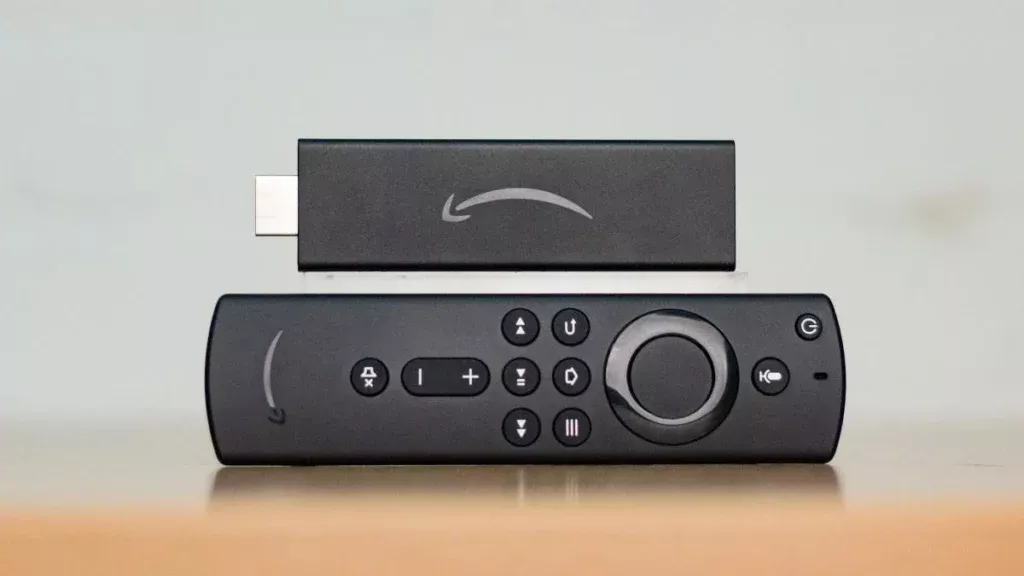
Amazon Fire TV Stick and Fire TV Cube
- From the Fire TV home screen, open the search (magnifier) icon.
- Type D and select Downloader from the suggestions, then install it.
- When prompted, choose Allow so Downloader can access storage.
- Go to Settings › My Fire TV › Developer Options › Install Unknown Apps and switch Downloader to ON. If Developer Options is missing, open About and press OK seven times on the device name.
- Open Downloader, select the address field and enter the official IBO Player code 511693, then press Go.
- Let the download finish without touching the remote, then complete the install with Next and OK.
- Launch IBO Player and dismiss the welcome message with OK.
Windows 10 and 11
- Download the 64-bit Windows installer. IBO Player requires Windows 10 or newer.
- Windows SmartScreen will block it because the file is not from the Microsoft Store. Choose More info.
- Select Run anyway to continue.
- Click Next, tick the desktop shortcut box if you want one, then Next again.
- Click Install, then Finish to launch the app.
macOS — MacBook and iMac
- Download the macOS build from the IBO Player download section.
- Open the downloaded file and drag the icon into your Applications folder.
- Open Launchpad and click the IBO Player icon. macOS will refuse the first launch because the app came from outside the App Store.
- Open the Apple menu › System Settings › Privacy & Security, scroll to the security notice and click Open Anyway.
- Confirm with Open Anyway. This approval is permanent — later launches are normal.
LG webOS and Samsung Tizen smart TVs
- Open the LG Content Store (or the Samsung Apps store on a Tizen set).
- Select the magnifier icon in the top-right corner to search.
- Type IBO Player.
- Choose the listing named exactly "Ibo Player". Similar names are clones — ignore them.
- Select Install, then Launch.
- Dismiss the first-run welcome message and continue to Step 2.
MAG, Enigma2 and other set-top hardware
Older receivers do not run IBO Player. They connect through a portal or playlist address configured on our side instead. Send your device model and MAC address to support and we will configure the line and send back the exact values to enter in your box's network settings.
Adding your EagleStream line to IBO Player
IBO Player uses remote activation: you register the device on the IBO Player website, and the playlist is pushed down to the app. Nothing long is typed on the television.
Find your device details
Open IBO Player on the television or box and select the person icon on the main dashboard. The Device Info panel at the top left shows your MAC address and device key. Write both down.
Log in to the playlist portal
On a phone or computer, open the IBO Player website and choose Manage Playlist from the top menu. Enter the MAC address and device key from the previous step and log in.
Add the playlist
Choose Add Playlist and complete the fields: Playlist name — anything you like, for example EagleStream; Playlist URL — the address from your welcome email; XMLTV EPG URL — leave empty unless you use a third-party guide; Protect this playlist — tick it to set a PIN. Click Save.
Or add an XC playlist
If your welcome email lists a username, password and host instead of a single long URL, choose Add XC Playlist and enter those three values. The Host field is the server address we supplied.
Refresh the app
Return to IBO Player on your television and reload. The full EagleStream grid appears — 51,000+ live channels plus the on-demand sections listed on the channels page.
Fixing the cluttered live TV layout
IBO Player ships with a live TV layout that overflows channel names under the preview window and squeezes the programme guide. It is a two-minute fix that most subscribers never discover.
- From the IBO Player dashboard, select the screen icon next to the Wi-Fi symbol.
- You are now in Live Screen Style. The default is Malai TV Style — the cluttered one.
- Switch it to Thai and click Save.
- Channel names now have room, the preview window sits correctly and the EPG is properly aligned. Press the left arrow on your remote (or the back gesture on a touch device) to bring the category column back when you need it.
Useful extras worth knowing
- Favourites: highlight a channel in the list and use the favourite action to pin it to the top of your grid.
- Search: the live TV section has a search field — far faster than scrolling 51,000 entries.
- Parental control: Settings includes a PIN-protected parental panel that hides adult categories entirely.
- Language: the interface can be switched to French under Settings › Language.
- Auto boot on start: have IBO Player launch automatically when the television powers on.
- Clear cache: the first thing to try if the guide looks stale or a category fails to load.
Troubleshooting the usual suspects
The playlist has not attached yet. Confirm the MAC address and device key you entered on the portal match the ones shown in the app, then restart IBO Player. If it still looks empty, send both values to support and we will attach the line from our side.
Test your connection speed on the same device — 4K needs roughly 25 Mbps. Switch to 5 GHz Wi-Fi or plug in ethernet, and confirm nothing else in the house is downloading. If the picture still stalls, tell us the channel name and time so we can check that specific feed.
Clear the cache under Settings, then reopen the app. Leave the XMLTV EPG field empty on the portal unless you are deliberately using a third-party guide — IBO Player pulls our 7-day EPG from the playlist automatically.
Usually the subscription term has ended. Check the expiry date in your welcome email, or contact support — extending an existing line takes a minute and keeps the same credentials.
Install IBO Player on the new device, note its MAC address and device key, and send them to support. We move the line across at no charge. Remember only one device can stream at a time.